

The application is INSPIRED by the Primary Flight Display (PFD) described in the following G1000 manual:
https://static.garmin.com/pumac/190-00498-08_0A_Web.pdf
1. Screen Layout
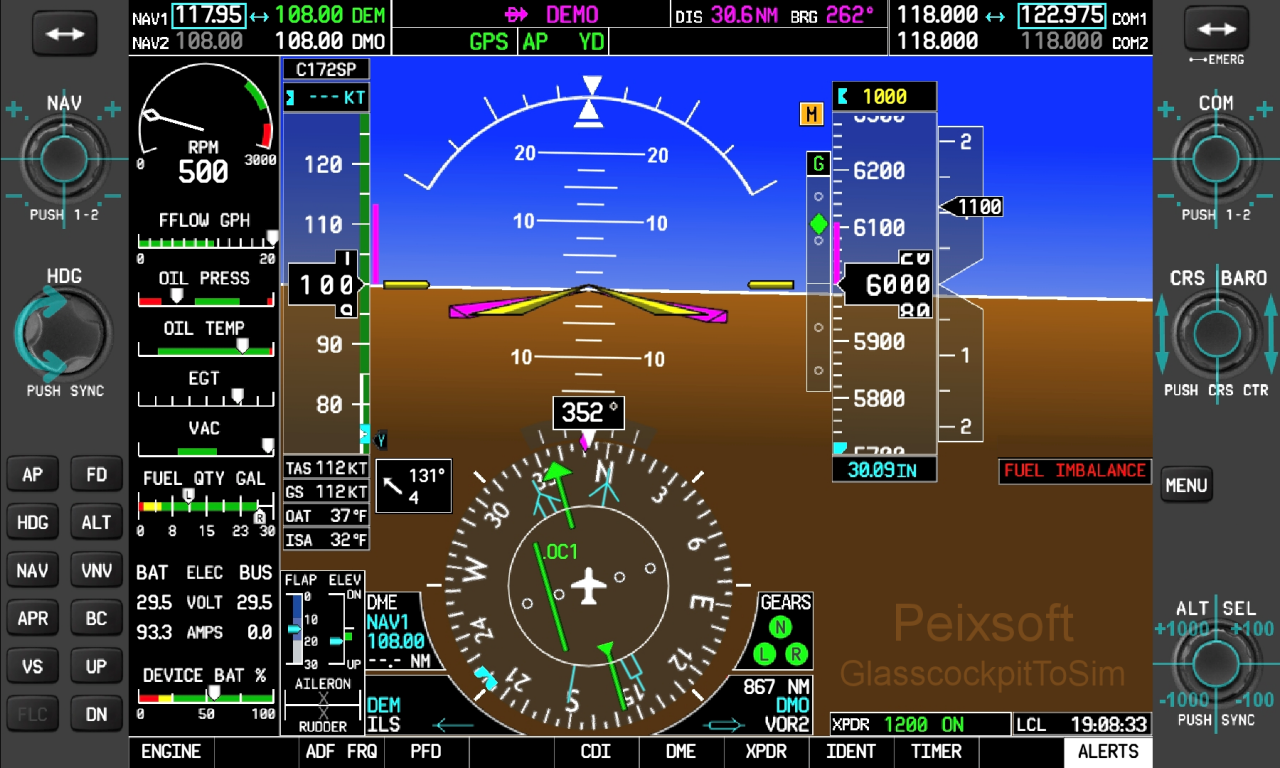
The application interface is divided into three sections:
- Main Display: Central area.
- Bezels: Side panels containing buttons and rotary encoders.
- Contextual Softkeys: On-screen menu located at the bottom.
2. Powering On the Display
The display will only power on when the following conditions are met:
- Simulator Connection:
- MSFS: Connection with Peix Connect established (all indicators green) and the aircraft is ready to fly.
- X-Plane: IP settings correctly configured in both the App and X-Plane, and the aircraft is ready to fly (important: X-Plane only transmits data when the aircraft is active).
- Master Battery ON and Main Bus Voltage: The aircraft must have electrical power. If the battery is depleted or there is no bus voltage, the screen will remain off (*).
- Avionics ON: NAV/COM radios require the Avionics master switch to be on.
(*) MSFS2024 Note: Due to a known issue in MSFS2024 where bus voltage is constantly reported as 0V, this check is bypassed in that simulator. Please refer to the MSFS2024 Compatibility Notice here.
3. Using Bezel Controls
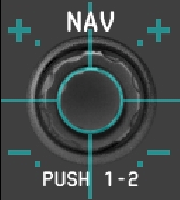
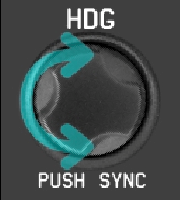
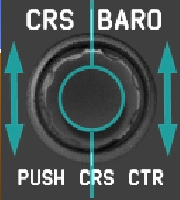
In the app settings, you can enable/disable Visual Help (cyan overlays) which indicates the gestures required for each control (click, drag, or rotate).
Push Control (Click)
NAV, COM, and Altitude selector controls respond to short presses. The upper half increases values, while the lower half decreases them. The center button executes the lower label (e.g., PUSH 1-2 for radios or PUSH SYNC for ALT SEL).
Rotary Control
To adjust the Heading Bug (AP), touch and rotate your finger around the control. A short press (click) will sync the heading bug with the aircraft’s current heading (Push Sync).
Slide Control (Drag)
Navigation Course (CRS) and Barometric Pressure (BARO) are adjusted by touching and sliding up or down. The left half modifies the CRS, and the right half modifies the BARO pressure. A short press on CRS centers the course on the current VOR radial.
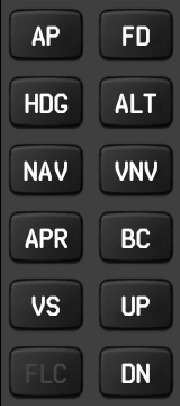
Autopilot (AP) Buttons
The layout varies according to the aircraft model to match the real cockpit as closely as possible.
Not all buttons are operational.
Note: Autopilot behavior depends on the simulator (MSFS or X-Plane) and may not behave exactly like a real G1000.
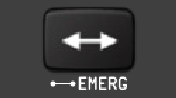
Frequency Transfer
A short press swaps Standby and Active frequencies. For COM radios, a long press swaps frequencies and sets the emergency frequency (121.500) as Active.
4. Contextual Softkeys (Bottom Menu)
The bottom menu, or “Softkeys,” allows you to toggle options or navigate submenus.
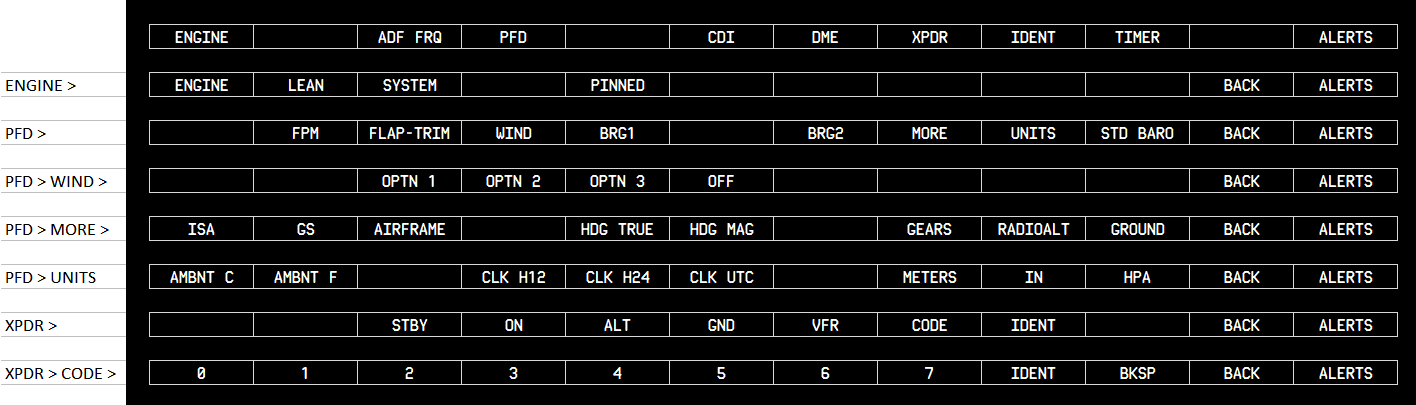
MAIN MENU
- ENGINE: Accesses the EIS (Engine Indication System) submenus.
- ADF FRQ: [On/Off] Toggles ADF frequencies instead of NAV.
- PFD: Press to display the additional softkeys for additional configuration of the PFD.
- CDI: Managed by the simulator, selects the primary navigation source (GPS, NAV1, or NAV2).
- DME: [Cycle] Press to display the DME Tuning Window.
- Sequence: Hidden > NAV1 > NAV2.
- XPDR: Press to display the transponder mode selection softkeys.
- IDENT: Simulates the Transponder IDENT button.
- TIMER: [Cycle] Toggles the stopwatch.
- Sequence: Hidden > Counting > Paused.
- ALERTS: A permanent button to view/acknowledge alerts. Changes color based on severity: Alerts (White), Caution (Yellow), Warning (Red).
Submenus
Submenus automatically return to the main menu after several seconds of inactivity. You can also press BACK at any time.
ENGINE
Control the EIS (Engine Indication System) display. These displays vary depending on the aircraft model.
- ENGINE: Displays essential engine parameters.
Includes a device battery meter (DEVICE BAT %) which is not an aircraft parameter, but a tool to monitor your Android device’s charge status. - LEAN: For piston aircraft, it shows EGT and CHT temperatures for each cylinder in a bar graph. For turbine aircraft, it shows cabin parameters: Cabin Altitude, Cabin Rate of Climb, and Differential Pressure.
- SYSTEM: Displays numerical values for several graphical indicators, such as oil pressure/temperature, fuel flow, battery/bus voltage, and amperage.
- PINNED: [On/Off] Permanently shows or hides the EIS display. When enabled, the EIS screen remains visible at all times, similar to the G1000 “Reversionary” mode.
- BACK: Return to the previous menu.
PFD
Allows you to show or hide various on-screen display options.
- FPM: [On/Off] Displays the Flight Path Marker also known as bird. Computed by the app.
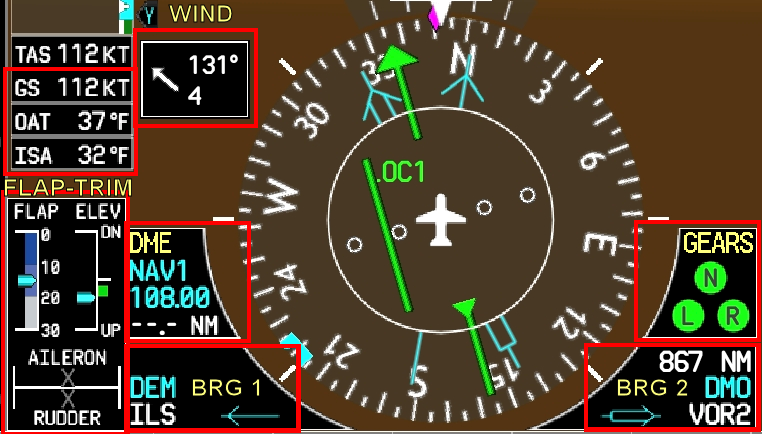
- FLAP-TRIM: [On/Off] Displays flap positions and trim settings: vertical (ELEV) and horizontal (AILERON and RUDDER), if applicable.
- WIND: Displays softkeys to select wind data parameters in three different modes:
- OPTN 1: Longitudinal and lateral components in knots.
- OPTN 2: Total direction (arrow) and speed in knots.
- OPTN 3: Total direction (arrow and numerical value) and speed in knots.
- OFF: Information not displayed.
- BRG 1 (Bearing 1): [Cycle] Displays a single-line pointer on the HSI and sequentially shows information associated with NAV 1, GPS, and ADF 1.
- BRG 2 (Bearing 2): [Cycle] Displays a double-line pointer on the HSI and sequentially shows information associated with NAV 2, GPS, and ADF 2.
- MORE: Accesses the MORE submenu for additional on-screen data.
- UNITS: Accesses the UNITS submenu to select measurement units.
- STD BARO: Sets the Kollsman barometric pressure selector to Standard pressure (29.92 inHg / 1013 hPa). This should be activated when climbing above the transition altitude and deactivated when descending below the transition level.
- BACK: Return to the previous menu.
MORE
Allows you to show or hide additional options that do not fit in the PFD menu. Some of these are unique to this app and do not exist on a real G1000.
- ISA: [On/Off] Shows or hides the ISA temperature below the airspeed tape.
- GS: [On/Off] Shows or hides the Ground Speed below the airspeed tape.
- AIRFRAME: [On/Off] Shows or hides the current aircraft model above the airspeed tape. E.g. [ C172SP ], [ BE58MS ], [ B350 ], [ DV20 ], etc.
- HDG TRUE – HDG MAG: Switches between True Heading or Magnetic Heading on the HSI.
- GEARS: [On/Off] Graphically displays landing gear status:
- Green: Down and locked.
- Red: In transit.
- Black: Retracted.
- Blue: Up for water landing.
- RADIOALT: [On/Off] Displays the radio altimeter when height is less than 2500 ft. It changes from white to yellow when passing through the DH if it is set in the simulator.
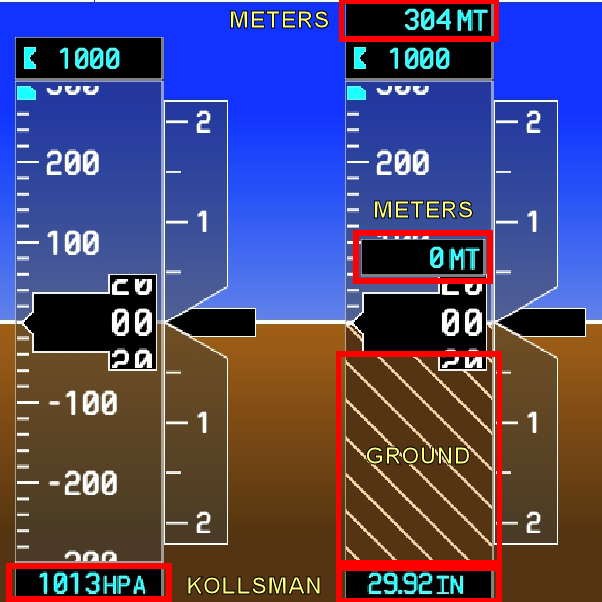
- GROUND: [On/Off] Graphically displays the ground at the “0 feet” position on the altitude tape. If disabled, negative altitudes will be shown on the tape.
- BACK: Return to the previous menu.
UNITS
Allows you to choose the units for specific data sets.
- AMBNT C – AMBNT F: Ambient temperature units (such as OAT or ISA). Choose between Celsius or Fahrenheit.
- CLK H12 – CLK H24 – CLK UTC: Clock format units.
- CLK H12: Local 12-hour format, including AM/PM. (e.g., [ LCL 11:20:45 PM ])
- CLK H24: Local 24-hour format. (e.g., [ LCL 23:20:45 ])
- CLK UTC: UTC format (24 hours). (e.g., [ UTC 21:20:45 ])
- METERS: [On/Off] Overlays altitude information in Meters on the altitude tape.
- IN – HPA: Kollsman barometric pressure units.
- IN: In Hg = Inches of Mercury (Imperial system).
- HPA: hPa = Hectopascals (Metric system).
XPDR & XPDR CODE
Transponder mode selection. It depends on the simulator; not all modes are supported by MSFS or X-Plane.
- STBY: Press to select Standby Mode.
- ON: Press to select Mode A.
- ALT: Press to select Altitude Reporting Mode.
- GND: Press to select Ground Mode.
- VFR: Press to automatically squawk 1200.
- CODE: Press to display transponder code selection softkeys 0-7.
- 0 through 7: Press numbers to enter code.
- IDENT: Simulates the Transponder IDENT button.
- BKSP: Press to remove numbers entered one at a time.
- BACK: Return to the previous menu.
5. Sistema de Alertas
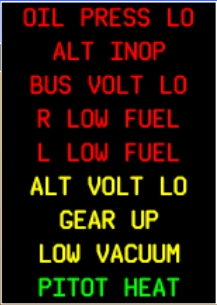
When alerts occur, they appear in the alert panel sorted from most critical (top) to least critical (bottom). The [ ALERTS ] label flashes until pressed to acknowledge the message. If the underlying condition clears, the alert disappears from the panel automatically.
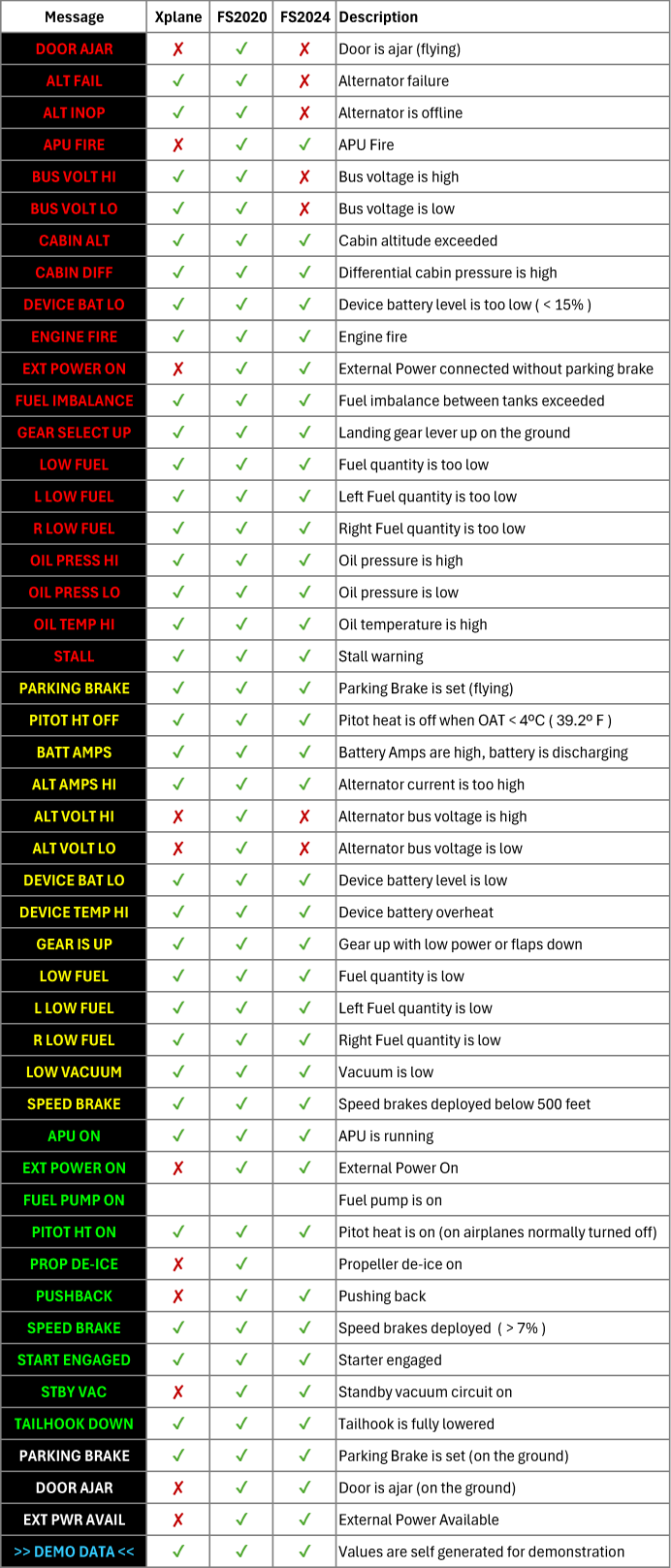
Following real G1000 logic, alerts like Low Vacuum, Oil Press Lo, Alt Inop, etc, are inhibit if the engine is not running.
List of application alerts and compatibility with simulators.
6. Failed or Inoperative Systems
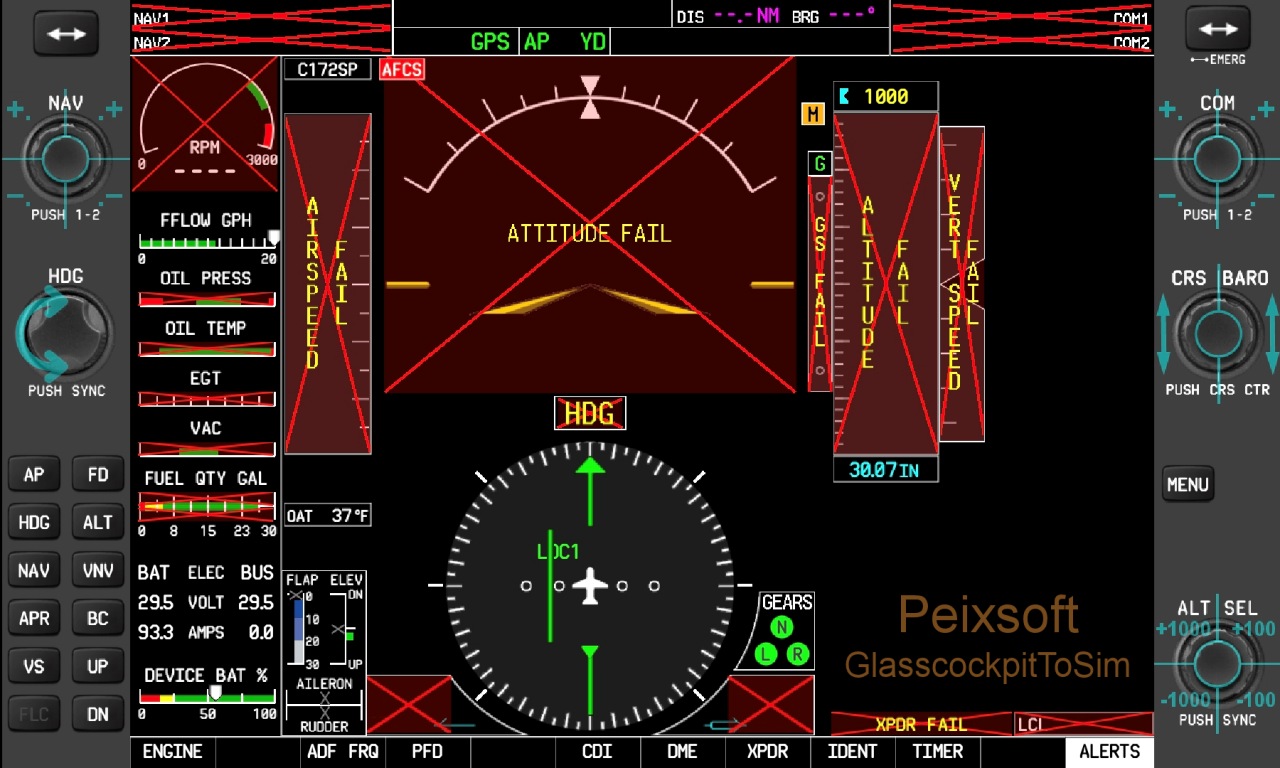
When the app detects a system failure or inoperative state, a Red or Gray “X” is displayed over the affected system or instrument.
7. Application Menu
Pressing the [ MENU ] button on the right bezel opens the application’s popup menu, where you can select:
- Aircraft Model: Allows you to manually choose the aircraft profile.
- Settings: Opens the app’s configuration menu.
- Purchase: Upgrade to the unlimited license via Google Play.
- Exit: Closes the application.
Last Revised: October 2026