

1. Requirements
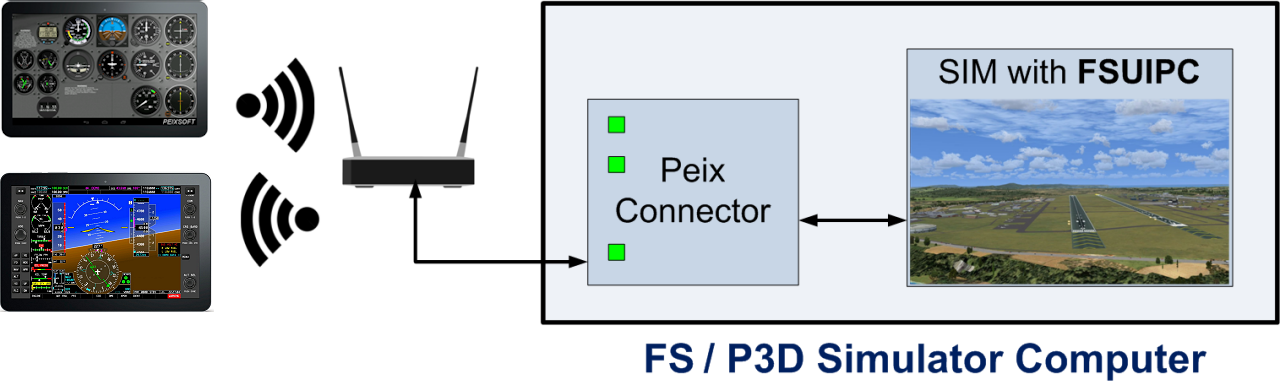
To enable communication between the Android app and your flight simulator, you must install two free applications on your PC: FSUIPC and Peix Connector. They function as an interface as described below:
– FSUIPC facilitates efficient communication between the simulator and external applications, and it’s widely used by software developers to connect their applications to the simulator. It’s developed by Peter Dowson, a third party developer.
– Peix Connect acts as a central hub between FSUIPC and the Android apps (or any protocol-compatible software), allowing multiple devices to connect simultaneously over your local network.
2. Downloads
FSUIPC (1) and Peix Connector (2) – Both applications are necessary to bridge the simulator with Peixsoft Android Apps. Please download them and follow the installation steps below.
(1) FSUIPC
– MS Flight Simulator 2020 & 2024 -> Download FSUIPC 7 
– Prepar3D v4 or above -> Download FSUIPC 6
The zip file contains the installer and the instructions.
No registration is required; the free version is sufficient to communicate with PeixConnect.
More details at FSUIPC official website: http://www.fsuipc.com
(2) PEIX CONNECT
– Peix Connector setup file
Peixsoft’s dedicated bridge between FSUIPC and external apps.
Extract and run the installer from the ZIP file.
3. Installation steps
If you already have FSUIPC installed before, go to point 4.
1. FSUIPC: Unzip the FSUIPC file and execute “Install_FSUIPC“.
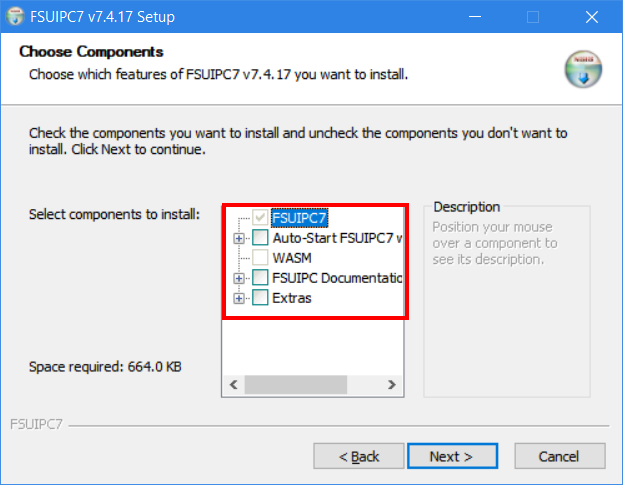
2. On the “Choose Components” screen, to save disk space, you can disable all options and press [ Next > ].
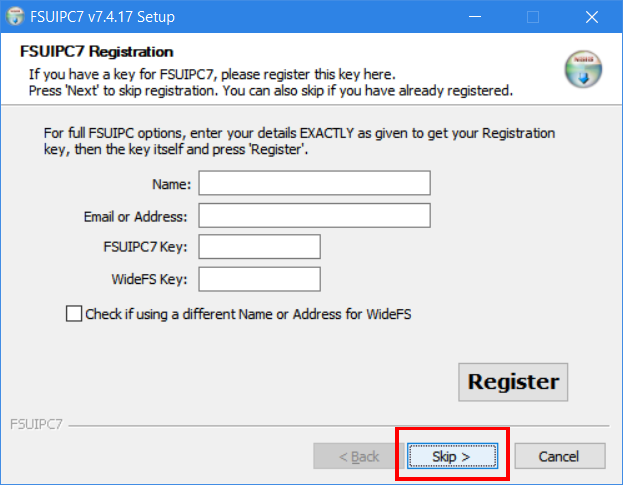
3. On the “Registration” screen, if you do not have a registration key, please directly press [ Skip > ]. Registration is not required to use Peix Software applications.
4. PEIX CONNECT: Extract the install_peixconn.exe executable file from the zip file and run it.
Note: The first time you install or run PeixConn, Windows Defender may display an alert.
Click “More info” and then click “Run anyway” to proceed with the installation.

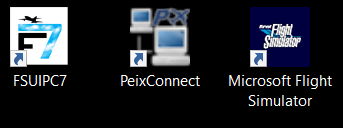
Click Next, accept the terms of use, click Next and then Finish. This will install the application and the desktop icon.
4. Connecting the App to the Simulator
Computer
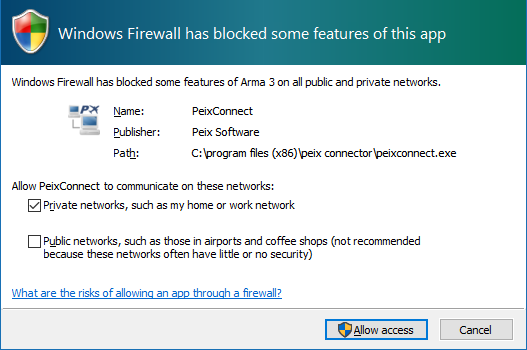
- Run Peix Connector. Upon the first launch, a Windows Firewall security alert may appear. Select [ Allow access ] to enable communication; otherwise, the apps will be unable to connect to the simulator.
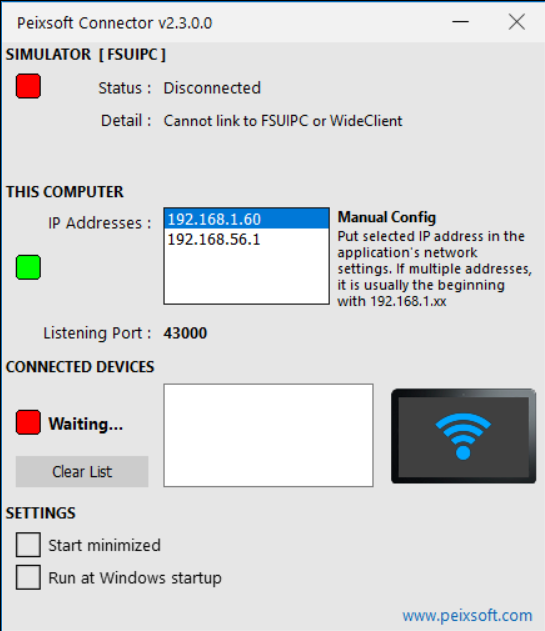
PeixConnect displays the real-time status of your connections.
In Figure 1, FSUIPC is not yet running, as it will be launched automatically by MSFS later.
The IP addresses show the network location where the server is listening for incoming app connections. The specific listening port is indicated below them.
Note: Your mobile devices must be on the same network as the computer running MSFS.
Android device
Note: Ensure WiFi is enabled and your device is connected to the same network as the simulator.
2. Launch the app on your Android mobile device.
By default, the app scans the network to find PeixConnect. If your computer has a static (fixed) IP address, I highly recommend configuring the app to use a direct connection instead of the automatic search. This significantly speeds up the connection process and helps avoid potential router or firewall issues.
 The red “WAITING” icon appears while the app is searching for PeixConnect. The app will continue to scan until a connection is established.
Once the app connects to PeixConnect, your mobile device’s IP address will appear in the “Connected Devices” list, along with the port used to receive data (see Figure 2).
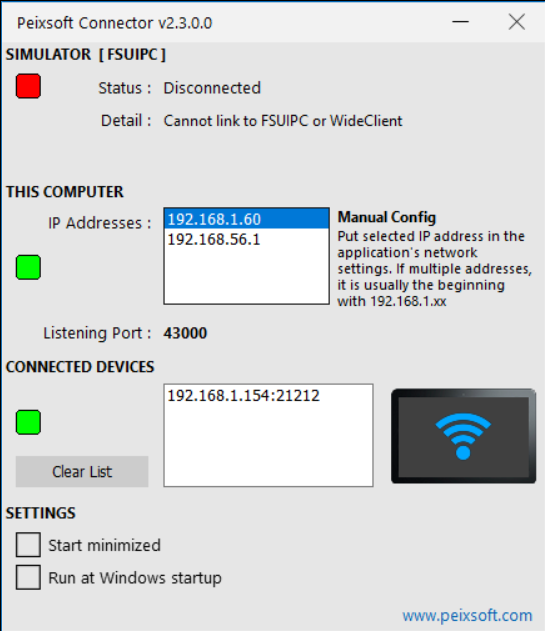
 The red “WAITING” icon will turn green and display “FSUIPC”. This indicates that PeixConnect is waiting for MSFS to load or is not yet receiving data from FSUIPC.
3. Run Microsoft Flight Simulator
FSUIPC should start automatically while the simulator is loading.
NOTE: FSUIPC is a third-party program that simplifies simulator interaction for developers. For any questions regarding its functionality, please refer to the official FSUIPC website.

Once FSUIPC is fully loaded, the green “FSUIPC” icon on the app will disappear, leaving the screen black (ready for data).
In PeixConnect, the SIMULATOR [FSUIPC] section should now show:
Status : Connected.
Detail: OK.
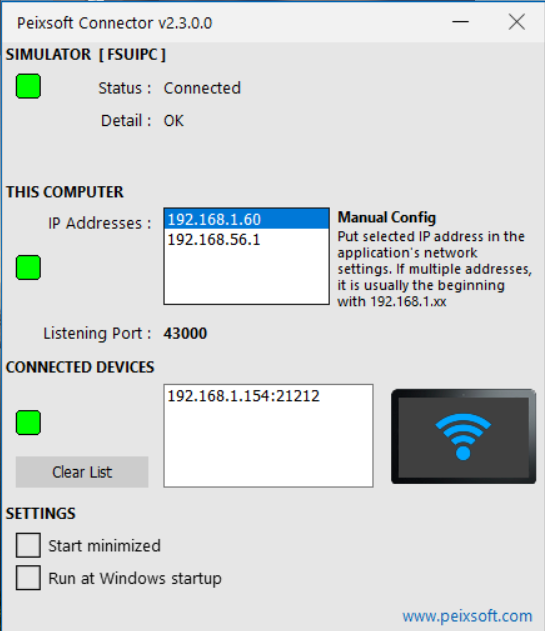
The system is ready when all status indicators turn green.
Peix Connector – sections detail:
1. SIMULATOR [ FSUIPC ]
It shows the status of communication with the simulator, in case of error indicates the reason.
FPL Folder is used by other Peixsoft applications.
2. THIS COMPUTER
It indicates the IP addresses of the computer, it is used to manually configure the device and indicate where it has to be connected. Using a static IP address is more efficient and reliable than the automatic search feature. Listening Port is very important, currently cannot be changed and must match the same number in the device settings (Remote Port).
3. CONNECTED DEVICES
Displays all connected devices, indicating the IP and port from which they connect. If there are no connected devices, the label Waiting… appears next to the list.
4. SETTINGS
– Start minimized : If checked the app will start minimized freeing the screen.
– Load when Windows starts : If checked the app will start automatically when Windows start.
These settings are useful for homebuilt cockpits where the simulator is an unattended computer.
Old versions: MS Flight Simulator X o Prepar 3D
Add-ons menu must appear on FSX / P3D with FSUIPC… as submenu.
